Create a custom screen doors
It is possible to customize the disposition of the screen door, adding or removing partition bars. Here is the instructions on how to do it:
1. Create a new screen door
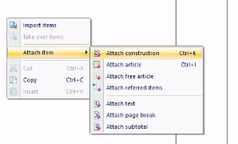
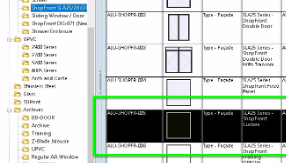
In a quotation/order, add a new screen door
2. Pick the options
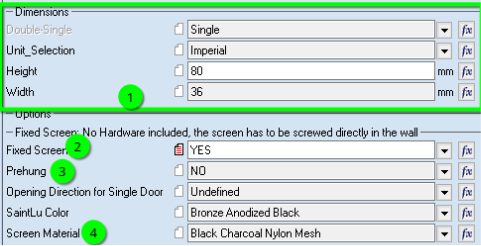
- (1) Input the dimensions
- (2) Fixed Screen: this option allows you to create a fixed screen with no door hardware.
- (3) Prehung: this option includes the screen, the door hardware and the frame.
- (4) Screen Material: you can pick here the material of the screen mesh, regular nylon mesh or a more resistant aluminium mesh.
3. Go in the sash tab
- In the 3D module go in the "Sash" tab to edit the door's partitions by clicking on it.
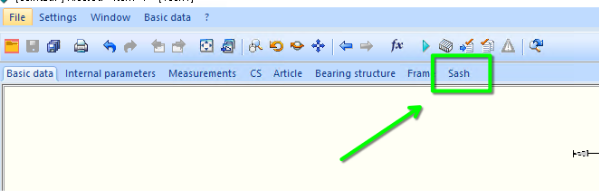
4 Select the right Sash
- Select the door you want to modify, in case of double door you will have to modify each door individually
- Select "Edit distribution of the Area".
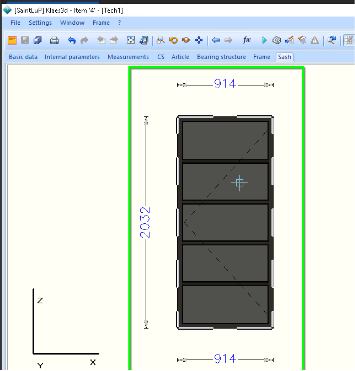
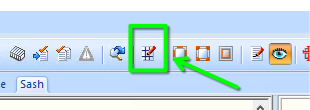
5 Edit the screen door's partitions
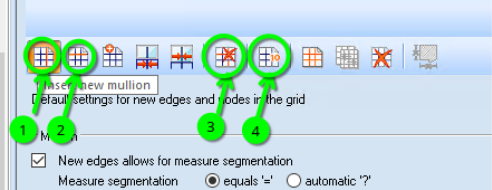
You can now use the area distribution tools to edit the screen door
- (1) this tool is used to add a new horizontal partition
- (2) this tool is used to add a new vertical partition (Read the warning below)
- (3) this tool is used to remove partitions
- (4) this tool is used to modify the distance between the partitions
- "=" means all the partitions are equal distance
- You can also input a specific dimension in mm
⚠️ Manufacturing a screen door with cross partitions (Vertical AND Horizontal) is a labour intensive process, it should be avoided as much as possible
⚠️ Being labour intensive also means that it will increase the price if a lot of crossing are present
See examples below:
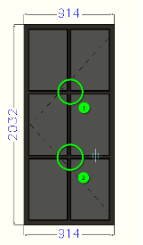 This model is adding custom labour cost x2
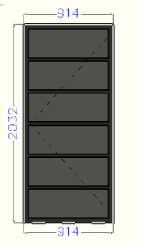 This model does not add any custom labour cost
6 Apply the modifications and close the window
- Once you are done you can apply the modifications by clicking on the green arrow button of by pressing F5 on your keyboard.
- Close the window to go back to the project view